Detail Page: View and Edit Data
- Query a single record with
getOne - Update data with
update - Delete data with
delete - Implement view/edit mode toggling
Estimated time: 20 minutes
Requirements
In the previous section, we built the customer list. Now let's implement the detail page:
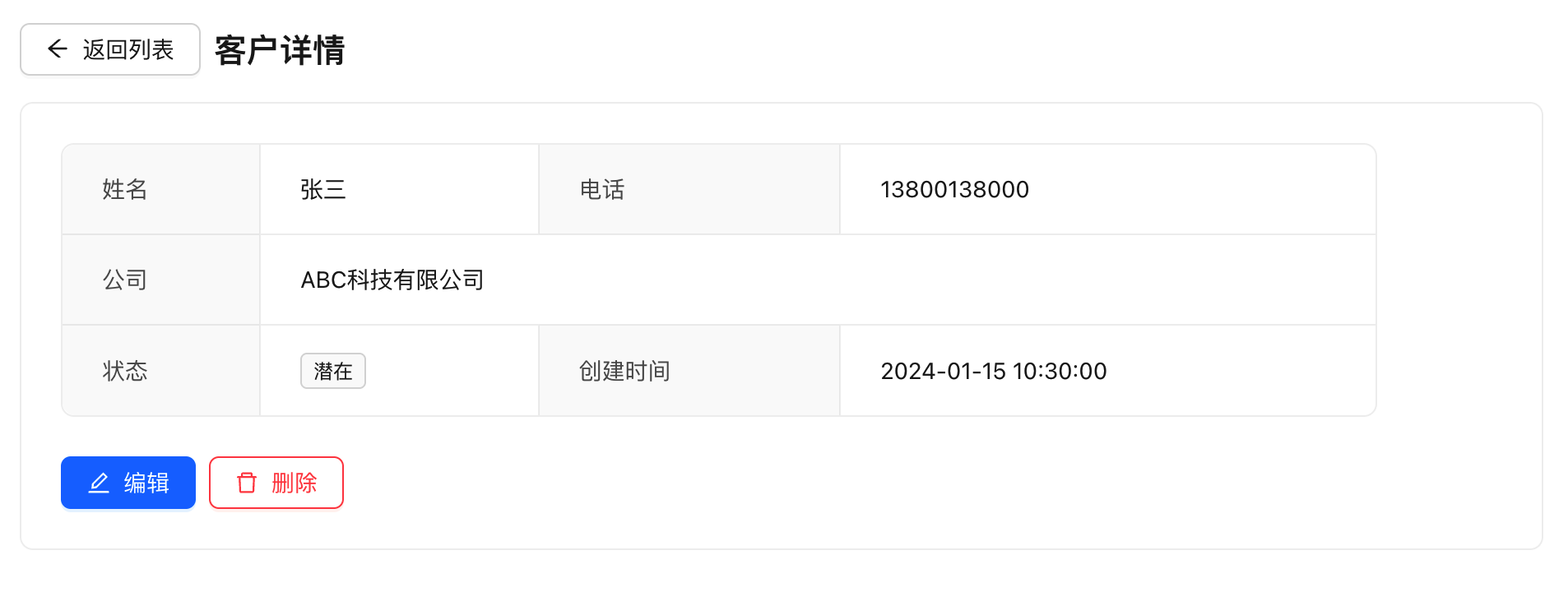
- Display complete information for a single customer
- Support editing (toggle to edit mode on click)
- Support deletion (with confirmation)
- Return to the list after a successful operation
AI-Assisted Development (Recommended)
Without rabetbase, a detail page requires 3 backend endpoints: GET /customers/:id, PUT /customers/:id, and DELETE /customers/:id. Each requires writing SQL, handling parameters, adding authentication, handling errors, and configuring CORS. The backend developer writes for 3 days, the frontend waits 3 days. On the first day of integration: the query endpoint returns a different format (the backend wraps it in { data: {...} }, but the frontend reads from the top level). On the second day: the update endpoint only accepts form-urlencoded, but the frontend sends JSON. On the third day: the delete endpoint returns 403 -- the backend forgot to allow DELETE in CORS. A detail page takes two weeks from backend development to successful integration.
With rabetbase: no backend endpoints to write. SDK's getOne(id), update(id, data), and delete(id) handle query, update, and delete in three lines of code. Parameter format, return structure, and authentication are all built in. No SQL to write, no backend to wait for, no integration to debug, no CORS to configure.
Just Tell AI
Enter the following in Claude Code:
Use rabetbase CLI to help me create a customer detail page that supports toggling between view and edit modes, with edit and delete buttons. In edit mode, the name, phone, company, and status fields can be modified. Data refreshes after saving. Deletion requires confirmation. Clicking a row in the list navigates to the detail page.
What AI Will Do
AI will automatically generate the complete React component code, including:
- Route configuration (
/customer/:id) getOneto fetch a single record- View/edit mode toggling
updateto save editsdeletewith confirmation- List page navigation links
Below is the step-by-step code generated by AI.
Manual Coding (Alternative)
Follow the steps below to create files and write each component manually.
Step 1: Configure Routing
The detail page needs to retrieve data using the ID from the URL, so let's configure routing first.
// src/App.tsx
import { BrowserRouter, Routes, Route } from "react-router-dom";
import CustomerList from "./pages/customer-list";
import CustomerDetail from "./pages/customer-detail";

function App() {
  return (
    <BrowserRouter>
      <Routes>
        <Route path="/" element={<CustomerList />} />
        <Route path="/customer/:id" element={<CustomerDetail />} />
      </Routes>
    </BrowserRouter>
  );
}

export default App;
/customer/:id-:idis a dynamic parameter that can be retrieved viauseParams()in the component- When accessing
/customer/123,idwill be123
Step 2: Fetch Data Details
Create the detail page component and use getOne to fetch a single record:
// src/pages/customer-detail.tsx
/**
* Title: Customer Detail
*/
import { useState, useEffect } from "react";
import { useParams, useNavigate } from "react-router-dom";
import { lovrabetClient } from "../api/client";
// Customer data type
interface Customer {
id: number;
name: string;
phone: string;
company: string;
status: "potential" | "active" | "lost";
create_time: string;
update_time: string;
}
export default function CustomerDetail() {
// Get customer ID from URL
const { id } = useParams<{ id: string }>();
const navigate = useNavigate();
const [customer, setCustomer] = useState<Customer | null>(null);
const [loading, setLoading] = useState(true);
// Fetch customer detail
useEffect(() => {
async function fetchCustomer() {
if (!id) return;
try {
const data = await lovrabetClient.models.customers.getOne<Customer>(id);
setCustomer(data);
} catch (error) {
console.error("Failed to fetch data:", error);
alert("Data does not exist or has been deleted");
navigate("/");
} finally {
setLoading(false);
}
}
fetchCustomer();
}, [id]);
if (loading) {
return <div style={{ padding: 24 }}>Loading...</div>;
}
if (!customer) {
return <div style={{ padding: 24 }}>Data does not exist</div>;
}
return (
<div style={{ padding: 24 }}>
<button onClick={() => navigate("/")}>← Back to List</button>
<h1>Customer Detail</h1>
<div style={{ marginTop: 16 }}>
<p><strong>Name:</strong> {customer.name}</p>
<p><strong>Phone:</strong> {customer.phone}</p>
<p><strong>Company:</strong> {customer.company || "-"}</p>
<p><strong>Status:</strong> {customer.status}</p>
<p><strong>Created:</strong> {customer.create_time}</p>
</div>
</div>
);
}
useParams()- Get the:idparameter from the URLuseNavigate()- Programmatic navigation for page redirection.getOne<Customer>(id)- Get a single record by ID, supports genericsgetOnereturns the data object directly, not a{ data: ... }wrapper
Step 3: Add Editing
Now let users edit customer information. We'll implement this by toggling between "view mode" and "edit mode":
// src/pages/customer-detail.tsx
/**
* Title: Customer Detail
*/
import { useState, useEffect } from "react";
import { useParams, useNavigate } from "react-router-dom";
import { lovrabetClient } from "../api/client";
interface Customer {
id: number;
name: string;
phone: string;
company: string;
status: "potential" | "active" | "lost";
create_time: string;
}
const STATUS_OPTIONS = [
{ value: "potential", label: "Potential" },
{ value: "active", label: "Active" },
{ value: "lost", label: "Lost" },
];
export default function CustomerDetail() {
const { id } = useParams<{ id: string }>();
const navigate = useNavigate();
const [customer, setCustomer] = useState<Customer | null>(null);
const [loading, setLoading] = useState(true);
// New: editing state
const [isEditing, setIsEditing] = useState(false);
const [editForm, setEditForm] = useState<Partial<Customer>>({});
const [saving, setSaving] = useState(false);
// Fetch customer detail
useEffect(() => {
async function fetchCustomer() {
if (!id) return;
try {
const data = await lovrabetClient.models.customers.getOne<Customer>(id);
setCustomer(data);
setEditForm(data); // Initialize edit form
} catch (error) {
console.error("Failed to fetch data:", error);
alert("Data does not exist");
navigate("/");
} finally {
setLoading(false);
}
}
fetchCustomer();
}, [id]);
// New: save edit
const handleSave = async () => {
if (!id) return;
setSaving(true);
try {
// Call update API
const updated = await lovrabetClient.models.customers.update(id, editForm);
setCustomer(updated); // Update displayed data
setIsEditing(false); // Exit edit mode
alert("Saved successfully!");
} catch (error) {
console.error("Save failed:", error);
alert("Save failed, please try again");
} finally {
setSaving(false);
}
};
// New: cancel editing
const handleCancel = () => {
setEditForm(customer || {}); // Restore original data
setIsEditing(false);
};
if (loading) return <div style={{ padding: 24 }}>Loading...</div>;
if (!customer) return <div style={{ padding: 24 }}>Data does not exist</div>;
return (
<div style={{ padding: 24 }}>
<button onClick={() => navigate("/")}>← Back to List</button>
<h1>Customer Detail</h1>
{isEditing ? (
// Edit mode
<div style={{ marginTop: 16 }}>
<div style={formGroupStyle}>
<label style={labelStyle}>Name</label>
<input
style={inputStyle}
value={editForm.name || ""}
onChange={(e) => setEditForm({ ...editForm, name: e.target.value })}
/>
</div>
<div style={formGroupStyle}>
<label style={labelStyle}>Phone</label>
<input
style={inputStyle}
value={editForm.phone || ""}
onChange={(e) => setEditForm({ ...editForm, phone: e.target.value })}
/>
</div>
<div style={formGroupStyle}>
<label style={labelStyle}>Company</label>
<input
style={inputStyle}
value={editForm.company || ""}
onChange={(e) => setEditForm({ ...editForm, company: e.target.value })}
/>
</div>
<div style={formGroupStyle}>
<label style={labelStyle}>Status</label>
<select
style={inputStyle}
value={editForm.status || ""}
onChange={(e) => setEditForm({ ...editForm, status: e.target.value as any })}
>
{STATUS_OPTIONS.map(opt => (
<option key={opt.value} value={opt.value}>{opt.label}</option>
))}
</select>
</div>
<div style={{ marginTop: 24 }}>
<button onClick={handleSave} disabled={saving} style={{ marginRight: 8 }}>
{saving ? "Saving..." : "Save"}
</button>
<button onClick={handleCancel} disabled={saving}>
Cancel
</button>
</div>
</div>
) : (
// View mode
<div style={{ marginTop: 16 }}>
<p><strong>Name:</strong> {customer.name}</p>
<p><strong>Phone:</strong> {customer.phone}</p>
<p><strong>Company:</strong> {customer.company || "-"}</p>
<p><strong>Status:</strong> {
STATUS_OPTIONS.find(o => o.value === customer.status)?.label
}</p>
<p><strong>Created:</strong> {
new Date(customer.create_time).toLocaleString()
}</p>
<div style={{ marginTop: 24 }}>
<button onClick={() => setIsEditing(true)} style={{ marginRight: 8 }}>
Edit
</button>
</div>
</div>
)}
</div>
);
}
// Simple styles
const formGroupStyle: React.CSSProperties = { marginBottom: 16 };
const labelStyle: React.CSSProperties = { display: "block", marginBottom: 4, fontWeight: "bold" };
const inputStyle: React.CSSProperties = { padding: 8, width: 300 };
update(id, data)- Update the record with the specified ID- Only pass the fields you want to modify; other fields remain unchanged
- Returns the complete updated data (including auto-updated
update_time) - When editing, use a separate
editFormstate; on cancel, restore the original data to avoid polluting the display
Step 4: Add Deletion
Delete operations should be handled carefully -- add a confirmation dialog:
// Add inside the CustomerDetail component

// Delete customer
const handleDelete = async () => {
  if (!id) return;

  // Confirmation dialog
  const confirmed = window.confirm("Are you sure you want to delete this customer? This action cannot be undone!");
  if (!confirmed) return;

  try {
    await lovrabetClient.models.customers.delete(id);
    alert("Deleted successfully!");
    navigate("/");  // Return to list
  } catch (error) {
    console.error("Delete failed:", error);
    alert("Delete failed, please try again");
  }
};

// Add delete button to JSX
<button onClick={handleDelete} style={{ marginLeft: 8, color: "red" }}>
  Delete
</button>
Delete is only available in WebAPI mode (Cookie authentication).
If you are using OpenAPI mode (AccessKey authentication), the delete operation will fail. In this case, use "soft delete" instead -- add a deleted field to mark the deletion status.
Step 5: Add Navigation from List Page
Finally, make each row in the list clickable to navigate to the detail page:
// Modify in src/pages/customer-list.tsx

import { useNavigate } from "react-router-dom";

export default function CustomerList() {
  const navigate = useNavigate();

  // ... other code ...

  return (
    <table>
      <tbody>
        {customers.map((customer) => (
          <tr
            key={customer.id}
            onClick={() => navigate(`/customer/${customer.id}`)}
            style={{ cursor: "pointer" }}  // Show hand cursor
          >
            <td>{customer.name}</td>
            <td>{customer.phone}</td>
            {/* ... */}
          </tr>
        ))}
      </tbody>
    </table>
  );
}
Complete Code
Click to view complete code
// src/pages/customer-detail.tsx
/**
* Title: Customer Detail
*/
import { useState, useEffect } from "react";
import { useParams, useNavigate } from "react-router-dom";
import { lovrabetClient } from "../api/client";
interface Customer {
id: number;
name: string;
phone: string;
company: string;
status: "potential" | "active" | "lost";
create_time: string;
update_time: string;
}
const STATUS_OPTIONS = [
{ value: "potential", label: "Potential" },
{ value: "active", label: "Active" },
{ value: "lost", label: "Lost" },
];
export default function CustomerDetail() {
const { id } = useParams<{ id: string }>();
const navigate = useNavigate();
const [customer, setCustomer] = useState<Customer | null>(null);
const [loading, setLoading] = useState(true);
const [isEditing, setIsEditing] = useState(false);
const [editForm, setEditForm] = useState<Partial<Customer>>({});
const [saving, setSaving] = useState(false);
// Fetch data
useEffect(() => {
async function fetchCustomer() {
if (!id) return;
setLoading(true);
try {
const data = await lovrabetClient.models.customers.getOne<Customer>(id);
setCustomer(data);
setEditForm(data);
} catch (error) {
console.error("Failed to fetch data:", error);
alert("Data does not exist");
navigate("/");
} finally {
setLoading(false);
}
}
fetchCustomer();
}, [id]);
// Save
const handleSave = async () => {
if (!id) return;
setSaving(true);
try {
const updated = await lovrabetClient.models.customers.update(id, editForm);
setCustomer(updated);
setIsEditing(false);
alert("Saved successfully!");
} catch (error) {
console.error("Save failed:", error);
alert("Save failed, please try again");
} finally {
setSaving(false);
}
};
// Cancel editing
const handleCancel = () => {
setEditForm(customer || {});
setIsEditing(false);
};
// Delete
const handleDelete = async () => {
if (!id) return;
if (!window.confirm("Are you sure you want to delete? This action cannot be undone!")) return;
try {
await lovrabetClient.models.customers.delete(id);
alert("Deleted successfully!");
navigate("/");
} catch (error) {
console.error("Delete failed:", error);
alert("Delete failed, please try again");
}
};
if (loading) return <div style={{ padding: 24 }}>Loading...</div>;
if (!customer) return <div style={{ padding: 24 }}>Data does not exist</div>;
const getStatusLabel = (status: string) =>
STATUS_OPTIONS.find(o => o.value === status)?.label || status;
return (
<div style={{ padding: 24, maxWidth: 600 }}>
<button onClick={() => navigate("/")}>← Back to List</button>
<h1>{isEditing ? "Edit Customer" : "Customer Detail"}</h1>
{isEditing ? (
<div style={{ marginTop: 16 }}>
<FormField label="Name">
<input
value={editForm.name || ""}
onChange={(e) => setEditForm({ ...editForm, name: e.target.value })}
/>
</FormField>
<FormField label="Phone">
<input
value={editForm.phone || ""}
onChange={(e) => setEditForm({ ...editForm, phone: e.target.value })}
/>
</FormField>
<FormField label="Company">
<input
value={editForm.company || ""}
onChange={(e) => setEditForm({ ...editForm, company: e.target.value })}
/>
</FormField>
<FormField label="Status">
<select
value={editForm.status || ""}
onChange={(e) => setEditForm({ ...editForm, status: e.target.value as any })}
>
{STATUS_OPTIONS.map(opt => (
<option key={opt.value} value={opt.value}>{opt.label}</option>
))}
</select>
</FormField>
<div style={{ marginTop: 24 }}>
<button onClick={handleSave} disabled={saving}>
{saving ? "Saving..." : "Save"}
</button>
<button onClick={handleCancel} style={{ marginLeft: 8 }}>Cancel</button>
</div>
</div>
) : (
<div style={{ marginTop: 16 }}>
<InfoRow label="Name" value={customer.name} />
<InfoRow label="Phone" value={customer.phone} />
<InfoRow label="Company" value={customer.company || "-"} />
<InfoRow label="Status" value={getStatusLabel(customer.status)} />
<InfoRow label="Created" value={new Date(customer.create_time).toLocaleString()} />
<div style={{ marginTop: 24 }}>
<button onClick={() => setIsEditing(true)}>Edit</button>
<button onClick={handleDelete} style={{ marginLeft: 8, color: "red" }}>
Delete
</button>
</div>
</div>
)}
</div>
);
}
// Helper components
function FormField({ label, children }: { label: string; children: React.ReactNode }) {
return (
<div style={{ marginBottom: 16 }}>
<label style={{ display: "block", marginBottom: 4, fontWeight: "bold" }}>{label}</label>
<div>{children}</div>
</div>
);
}
function InfoRow({ label, value }: { label: string; value: string }) {
return (
<p style={{ margin: "8px 0" }}>
<strong>{label}:</strong> {value}
</p>
);
}
Summary
You have learned:
| API | Purpose | Return Value |
|---|---|---|
getOne(id) | Get a single record | The data object itself |
update(id, data) | Update data | Complete updated data |
delete(id) | Delete data | None (WebAPI mode only) |
FAQ
Q: What is the difference between getOne and filter return values?
getOne(id)- Returns the data object directly{ id, name, ... }filter()- Returns a paginated structure{ tableData, total, ... }
Q: Do I need to pass all fields when updating?
No. Only pass the fields you want to modify; other fields remain unchanged. This also helps avoid data overwrite issues during concurrent modifications.
Q: Delete fails, what should I do?
Delete is only available in WebAPI mode (Cookie authentication). If you are using OpenAPI mode, use "soft delete" instead:
// Soft delete: mark as deleted instead of physical deletion
await lovrabetClient.models.customers.update(id, {
  status: "deleted",
  deleted_at: new Date().toISOString()
});