5-Minute Quick Start
This is a complete tutorial that takes you from zero to creating a Lovrabet project. The entire process takes about 5-10 minutes.
Prerequisites
- Lovrabet CLI installed: Complete installation according to the Installation Guide
- Windows users recommendation: Git Bash is strongly recommended as the command-line terminal
- Fully tested in Git Bash with the best experience
- CMD/PowerShell only has basic compatibility and may encounter some issues
- How to open: Right-click on a folder → Select "Git Bash Here"
Confirm your environment: Run
lovrabet --helpin the terminal. If you can see the help information, your environment is ready.
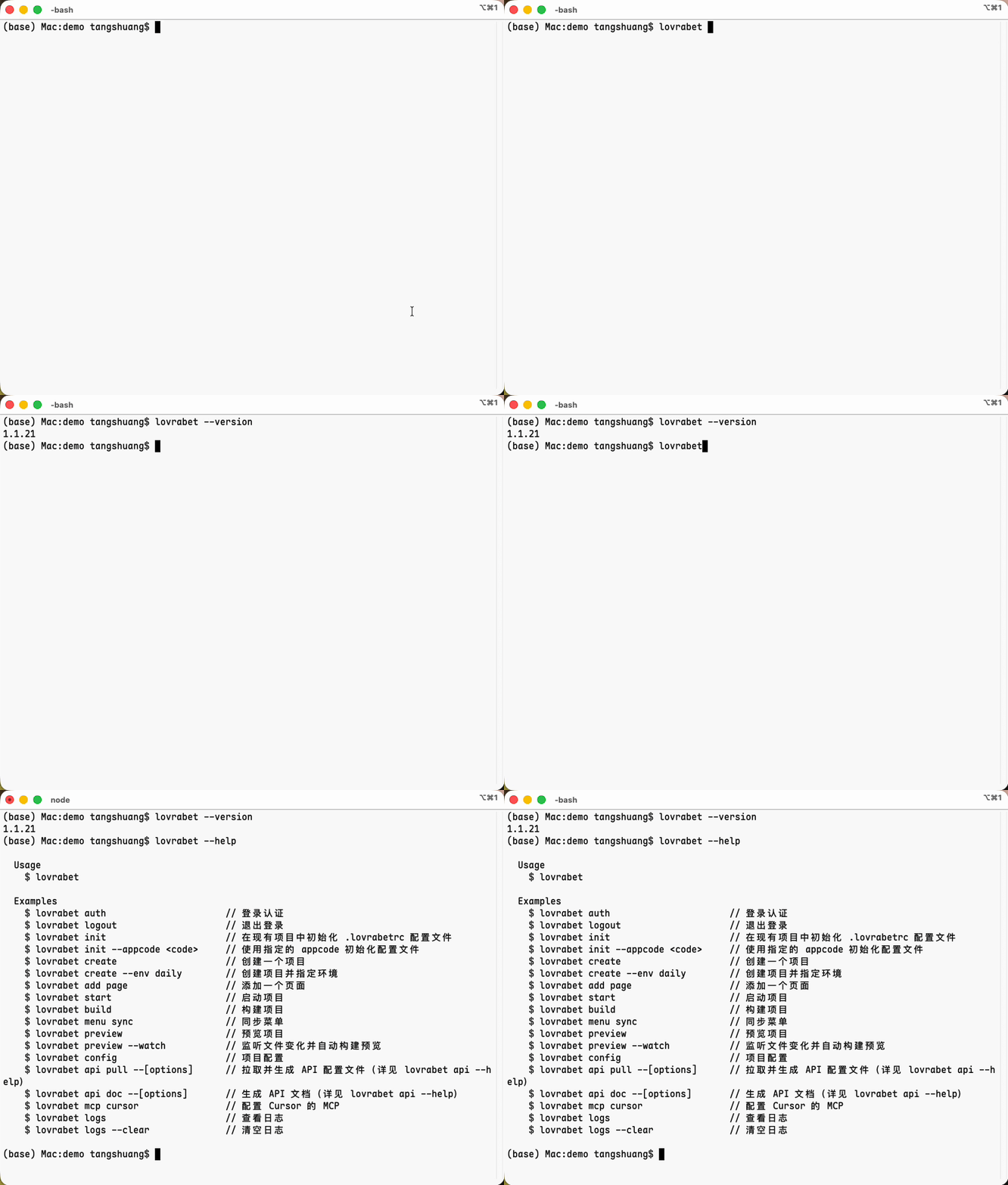
Step 1: Create a Project
Method 1: Interactive Creation (Recommended)
Enter the following command in the terminal:
lovrabet create
The CLI will guide you through project creation, just follow the prompts:
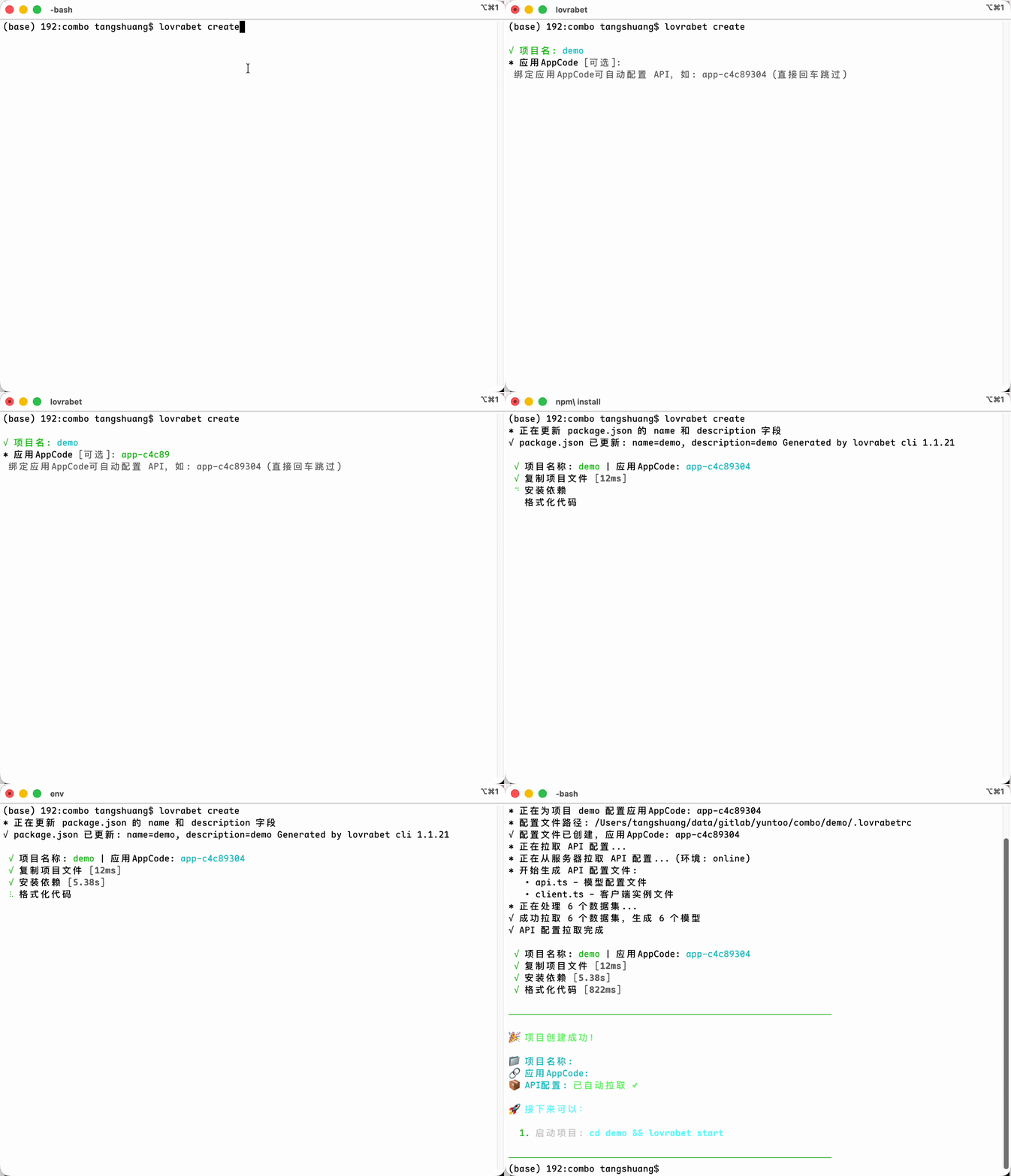
1. Enter Project Name
* Project name: my-app
  Press Enter to confirm, or enter a custom name
- Default name:
my-app(press Enter to use) - Custom name: Enter your desired project name, e.g.,
my-awesome-app - Naming rules: Only letters, numbers, hyphens
-and underscores_, must start with a letter or number
2. Bind Application AppCode (Optional)
* Application AppCode [optional]:
  Binding AppCode can auto-configure API, e.g., app-c4c89304 (press Enter to skip)
- What is AppCode? A unique identifier assigned by the backend system for your project, usually in the format
app-xxxxxxxx - How to get it? Ask your backend colleagues or check in the backend admin system
- Skip: Press Enter, you can configure later with
lovrabet config set appcode <code>
3. Login Authentication (If API Pull is Needed)
If you entered an AppCode, the CLI will check login status:
- Already logged in: Shows
√ Valid login state detected - Not logged in: Asks
* Do you want to login first to pull API configuration?
Selection Recommendations:
- Choose
Yes- Recommended, automatically pulls API configuration, saves manual work later - Choose
No- Skip login, need to manually configure API after project creation
Login Process:
- CLI starts a local server
- Automatically opens browser to the login page
- Enter username and password in browser to complete login
- Return to terminal to continue the creation process
Windows User Tips:
- Browser may not open automatically, manually copy the link shown in terminal to the browser
- Browser may show "insecure connection" warning, click "Advanced" then select "Continue"
4. Pull API Configuration (If Logged In)
After successful login, the CLI will ask:
* Do you want to automatically pull API configuration?
  ▶ Yes  No
  Use ←→ to select, Enter to confirm
  Recommended to choose Yes for automatic API configuration
Selection Recommendations:
- Choose
Yes- Recommended, automatically generates API code, ready to use - Choose
No- Skip, you can manually pull later withlovrabet api pull
5. Automatic Project Creation
After confirming the above options, the CLI will automatically:
- ✅ Copy project files (from official template)
- ✅ Update project configuration (package.json)
- ✅ Install npm dependencies
- ✅ Format code (Prettier)
- ✅ Create configuration file (.lovrabetrc)
- ✅ Pull API configuration (if Yes was selected)
Method 2: Direct Creation (Fast)
If you already know the project name, you can specify it directly:
lovrabet create my-app
This method skips the interactive guide and directly creates a project named my-app, but will not auto-configure AppCode and pull API.
Step 2: Start the Project
After creation, enter the project directory and start the development server:
cd my-app
lovrabet start
What Happens After Starting?
- Starts Vite development server
- Automatically opens browser
- Browser auto-refreshes after code changes (Hot Module Replacement)
Step 3: Configure API (If Not Configured During Creation)
If you skipped AppCode configuration during project creation, you can manually configure it later:
1. Set AppCode
lovrabet config set appcode <your-app-code>
For example:
lovrabet config set appcode app-c4c89304
2. Pull API Configuration
lovrabet api pull
The CLI will ask what name you want to save the API files with. Press Enter to use the default name api.
3. Generated Files
After completion, you will see in the src/api/ directory:
src/api/api.ts- Contains all API interface definitionssrc/api/client.ts- Pre-configured client, ready to use
4. How to Use API
In your React components or other TS/JS files:
import { lovrabetClient } from "@/api/client";

// Example: Call API to get data
const data = await lovrabetClient.someApiMethod();
Step 4: Add New Pages
If you want to add new pages to your project:
lovrabet add page
Interactive Process
-
Select page template:
blank- Blank page, only basic structurehello-world- Example page with content and styles
-
Enter route path:
- Single-level route:
about→ Createssrc/pages/about/ - Multi-level route:
user/profile→ Createssrc/pages/user/profile/
- Single-level route:
Step 5: Build and Preview
Build Production Code
lovrabet build
Generated static files will be saved in the dist/ directory.
Preview Build Results Locally
lovrabet preview
Starts a local server to preview the packaged results.
Live Build and Preview
lovrabet preview --watch
Monitors file changes, automatically rebuilds and previews.
Step 6: AI-Assisted Development Configuration (Optional) v1.2.5+
If you use Cursor, Claude Code, or other AI IDEs, you can configure MCP and skills to enable AI to access datasets and understand development standards.
Configure MCP
Enable AI IDEs to directly access Lovrabet datasets:
# Configure Cursor
lovrabet mcp install --cursor

# Configure Claude Code
lovrabet mcp install --claude
Install AI Skills
Install development standards and guides for AI IDEs:
# Install Lovrabet AI Skills (recommended)
npx skills add lovrabet/lovrabet-skill
The skills tool will automatically detect your IDE and install the corresponding configuration.
After Configuration is Complete
Restart your IDE, and AI will be able to:
- View dataset structure and field definitions
- Generate code following correct standards
- Avoid common API errors
💡 Tip: This is an optional configuration that does not affect normal development. For details, see MCP Configuration and AI Skills Installation
Congratulations!
You have successfully completed the entire process from project creation to local development.
What's Next?
- 📖 Read Command Reference to learn more available commands
- ⚙️ Check Configuration Guide to customize your project
- 🔧 If you encounter problems, refer to Troubleshooting
FAQ
1. Will login state expire?
Yes, login information is saved in a local file (~/.lovrabet/cookie). You may need to re-login after a long period of inactivity.
2. Can I add API configuration later if I skipped it during project creation?
Yes, use the following commands:
lovrabet config set appcode <your-app-code>
lovrabet api pull
3. How to view current project configuration?
lovrabet config list
4. Is the project template fixed?
Yes, currently the official unified template is used (React + Vite + TypeScript).